01
Prepare your footage in Premiere.
Synchronize cameras on separate video tracks and place music on A1. Choose the full sequence or set In/Out for a focused edit.
Open the step-by-step guide ↗MUSIC-DRIVEN EDITING · INSIDE PREMIERE PRO
Multicam AI turns your music map into camera switches.
Analyze the beat, shape the pacing, and finish your edit in Premiere.
TRY IT HERE · NO INSTALL NEEDED
Press Start. Watch the music scan, automatic cuts and cleanup turn four camera tracks into one finished edit.
Interactive practice demo · sample visuals generated with Higgsfield · no files uploaded or real footage edited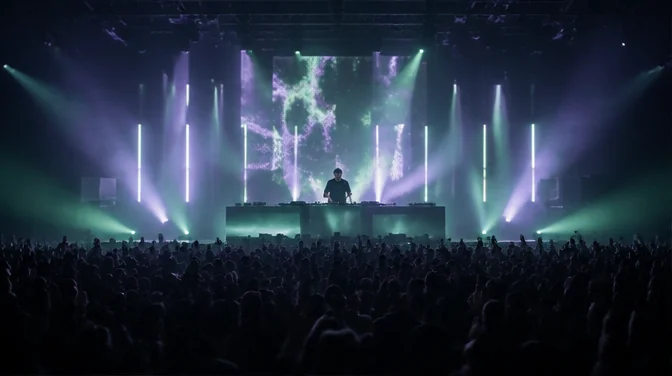
In Premiere, put each synchronized camera on its own video track and music on A1. Here, load our ready-made example.
Example music · 120 BPM · 4 beats per cut
Ready to try. No account required.
Final video: fictional moving footage generated with Higgsfield. Guided workflow simulation, not a recorded plugin export. Open sample video ↗
Follow these steps in Premiere ↗EXPLORE THE MUSIC MAP
Choose a pace, press Play and watch the beat grid guide the camera switches. A conceptual illustration you can explore at your own speed.
Your creative control stays with you.
HOW IT WORKS
Four steps. One familiar editor.
Synchronize cameras on separate video tracks and place music on A1. Choose the full sequence or set In/Out for a focused edit.
Open the step-by-step guide ↗Analyze beats, BPM, structure and main drops. Review the music map before choosing the edit. Local analysis runs through FFmpeg/DSP.
Open the step-by-step guide ↗Choose 2, 4, 6 or 8-beat pacing, camera roles and your main-drop angle. Generate a plan and inspect camera choices before applying.
Open the step-by-step guide ↗Apply camera switches directly to your Premiere timeline. Start with Keep Clips, then refine your cuts, zooms and grade.
Open the step-by-step guide ↗THE PRODUCT
Beat analysis, camera control and editing tools inside Premiere Pro.
Analyze the full A1 music track once using local FFmpeg/DSP analysis. Beat, BPM, phrase, energy, build-up, breakdown and drop impact inform the camera plan.
Main drops are selected using confidence, structural evidence and spacing. Multicam and Best Music Drops reuse the ranked music map when the sequence and A1 are unchanged.
Beat-aligned decision points guide the edit, but a physical razor cut is made only when the selected camera changes. Same-camera decisions stay continuous. The workflow creates no Premiere timeline markers.
Select one interval for fixed pacing, or several to let the music map choose among them. Validated main drops interrupt the cadence, switch the angle and restart the beat count.
Set camera roles and enable the tracks you want. When a preferred camera has no footage coverage, the director falls back to another enabled camera that covers the interval. If none does, the original footage is preserved.
Choose a video track for validated main-drop impacts, or leave it on Auto. Your chosen camera is used when enabled and covered; otherwise the director selects a covered alternative.
Set minimum and maximum Scale values. Each compatible clip receives two Scale keyframes with a randomly chosen zoom-in or zoom-out direction.
Run after multicam cleanup completes. Existing Scale keyframes in the processed source range are replaced; unsupported clips and locked or muted tracks are skipped.
Analyze first, review the valid drop count, then choose how many top-ranked drops to render. Adjust sensitivity and beat-based pre/post windows; duration follows the music's BPM.
H.264 Match Source exports are saved beside your Premiere project in a Best Music Drops folder. Choose an H.264 preset manually if automatic detection cannot find one.
Podcast speaker tracking is Coming Soon. Optional online AI uses your own API key and may incur provider charges.
SIMPLE PRICING
Start with the 7-day trial. Buy when the workflow fits your work.
Explore it with your own footage.
Download free ↗Create and confirm your account. Your trial starts on first plugin activation.
One purchase. No plugin subscription.
US$100, converted to IDR using the latest available daily exchange rate. Your order amount is shown and locked before payment via Midtrans.
Adobe Premiere Pro is required and sold separately. One plugin device can be active per account.
DOWNLOAD & INSTALL
Save your project and close Premiere before installing.
Extract the release ZIP, run SETUP-WINDOWS.cmd, then reopen Premiere.
Extract the release ZIP, run the included .command installer, then reopen Premiere.
Open Window → Extensions (Legacy) → R Project Multicam AI. Sign in with the account linked to your license. Check release-specific compatibility before purchasing.
QUESTIONS & ANSWERS
Contact WhatsApp, rizkyardi1503@gmail.com or message @r.project__ on Instagram with your operating system, Premiere version and the installation step or error message. Never send your password or API keys.
Yes. Multicam AI is a Premiere Pro extension. Prepare your sequence in Premiere and use the panel to analyze music and apply camera switches.
Local music analysis is available. Online AI review is optional and requires your own supported API key. Provider charges are separate from the plugin license.
Use the same account for your purchase and the plugin. After the payment has been verified and the license assigned, sign in inside Premiere to check your access.
Review the result before delivery. Camera selection, footage coverage and music style affect the edit; you can refine the timeline in Premiere.
The inspected extension manifests declare a host range of 22.0–26.99. Installation and runtime compatibility should be confirmed for your specific Premiere version and operating system.
KEEP LEARNING
R PROJECT MULTICAM AI
Bring your footage. Let the music guide the rhythm.
Download Multicam AI ↗